



Archive for August, 2010

Brochure Tutorial – Trifold

Wednesday, August 25th, 2010

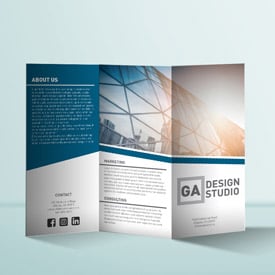
A Short Tutorial on Building a Trifold Brochure

Good trifold brochure design starts by beginning with a good solid foundation, in this case making sure your margins and folds are set up properly before even beginning the design and layout stage. We supply a wide variety of templates you can use to set up your own collateral material before submitting it for printing. Doing this step first will ensure your job will fly through production without a hitch on the technical side! Aside from that, image resolution and making sure you have bleed will keep you covered! Check out the tutorial below for an overview on the basics of brochure design!

Brochure Design - PGprint.com
Runtime
5:15
Views
7,064

Ready to print you brochure? Check out our Online brochure printing at PGprint!

Christopher Robinson

Making Grunge Effects – Type

Tuesday, August 24th, 2010

How to Make Grunge Type Effects

Today’s blog is a quickie on how to add grunge effects to type easily. First you will need some grungy images, best place to find these is on the web or take them yourself. Make sure before you use an image from the web that the owner/photographer has released rights for personal/commercial use and reproduction (see blog on copyright!) I found some images at Desizn Tech that are free for personal and commercial use, it is also a good reference site for for web designers, techs and anyone with an interest in design in general, back to the topic at hand…

Once you have an image in hand, make sure it has good contrast in the image for the area you want to pull out for your “grunge”. I adjusted the contrast a little in photoshop in the image I picked (from Desizn Tech) before placing it in Adobe Illustrator. Once in Illustrator I ran live trace and adjusted my options to pull out the dark areas. I set it to blakc and white and then ungrouped and removed the white areas leaving me just the black shown below.

Once I had the grunge for my image (see above) I turned the black to magenta so I could see the type and the image areas and overlap clearly (below).

At this point I selected the type, converted it to outlines, colored the grunge art white again and used the pathfinder divide tool to subtract the grunge from the type I then selected all the white areas using “select same fill color” and deleted the white parts. You can see the remainder (below) with points highlighted.

At this point you are done and have your grunge artwork ready to go, click on the image below to see a more blown up version. You can also have a two-tone look by putting another copy of the type artwork without the grunge effect to fill in the white areas with another color.

I hope you enjoyed this little tutorial, and when you are done with that “grunge” poster bring it on over and have us print it for you here at PGprint.com!

Christopher Robinson

Apple Attempts Another Block to Jailbroken iPhones

Monday, August 23rd, 2010

Apple Computer  has applied for a patent that if accepted will block unauthorized hacks.

This time around Apple has actually  put in many beneficial elements into this patent application. It covers many things that would make you want to applaud Apple, like blocking access to sensitive material (credit card, SSN, banking info), blocking unauthorized remote camera use, and the list goes on! Before you pat Apple on the back with a “Good Job” seems they do have some ulterior motives. Elsewhere in the wording it specifies detection of  “…any action that may indicate the electronic device is being tampered with by being, for example, hacked, jailbroken, or unlocked,…”

See the original post on the Register for more information and more detail. For more detail in your printing come see us at PGprint

Christopher Robinson

Reference – Copyright and Trademark

Wednesday, August 18th, 2010

A great source of reference material for copyright and trademark concerns.

Copyright and Trademarks are two things that everyone knows a little about… but could, and should… know more. In this article I will list some online resources for you to bookmark and reference and explain some of the more basic info myself. Every designer creating logos or writing copy should be aware of.

What exactly are trademarks? Here is an exerpt from the  Cornell University Law School’s Law dictionary and encyclopedia:

“Trademarks are generally words, phrases, logos and symbols used by producers to identify their goods.  However, shapes, sounds, fragrances and colors may also be registered as trademarks…Almost any word, name, symbol, or device capable of distinguishing the source of goods may be used as a trademark subject to few limitations…  “

Here are a few sites you should bookmark in case you ever get into a situation where you need to trademark something.

Cornell University Law School’s Law dictionary and encyclopedia on Trademarks

United States Patent and Trademark Office (official Government site)

What exactly is Copyright? The US copyright office has this to say about copyright basics:

“Copyright is a form of protection provided by the laws of the United States (title 17, U. S. Code) to the authors of ‘original works of authorship,’ including literary, dramatic, musical, artistic, and certain other intellectual works. This protection is available to both published and unpublished works.”

A few useful links to more information on copyright can be found at the sites below.

US Copyright Office (make sure to check out the copyright basics!)

Copyright Alliance

There is a lot of great information located on the above sites, the general info I have posted should give you enough to understand the basics of the basics, but don’t stop there! Enjoy the read, and when you finish that trademarked logo and set up your stationary come see us for the Printing!

Christopher Robinson

Apple’s New Mac Pro

Thursday, August 12th, 2010

Introducing the New Mac Pro from Apple!

Apple has outdone themselves again, The new Mac Pro systems look extremely capable… and FAST! They have come up with a wide variety of processor option in the new Mac Pro. The options range from the Quad-Core Intel Xeon “Nehalem” processor (up to 3.2 GHz) machine all the way up to a 12 core machine using 2 6-core “Westmere” processors (up to 2.93GHz). With all the advancements in processor and ram Apple says this Mac Pro is up to 1.5x faster than the previous generation.

When it comes to standard graphics the new high-performance graphics cards from AMD make Mac Pro up to 5 times faster than ever before (graphics performance). The ATI Radeon HD 5770 with 1GB of GDDR5 memory comes standard. There is also an insane upgrade to the ATI Radeon HD 5870 with 1GB of GDDR5 memory, this card features a wider memory bus and higher-performance GPU (resulting in up to 70 percent faster performance compared with the ATI Radeon HD 5770).

Storage is off the chain as well, this is the first Mac Pro to offer Solid State Drives from the factory… nice. you get four 3.5 inch drive bays and can get up to 8TB of storage when configured with Serial ATA drives, Solid State drive are only available in a 512 GB flavor so you can only get up to 2 TB if you go that route(raid 0, 1, 5 and 0+1 are also available). They can also pop  in two Superdrives for multitasking purposes. Check out the chart on speed of Solid State (SSD) drives below.

Solid State Drive IO performance

The single processor 2.8GHz Quad-Core Intel Xeon “Nehalem” starts at $2499 and at the other end of the spectrum the Two 2.66GHz 6-Core Intel Xeon “Westmere” processor version starts at $4999. I was able to max one out at $19,847 but of course that with 12 cores, 32 GB or ram, 4 solid state drives and dual graphics cards and 2, yes 2 30″ Apple Cinema Displays.

Take a look at the Apple store, once you pick up a new HOT Mac Pro and start creating some great design work, bring it back here to up for some “Correct and on Time” printing!

Christopher Robinson

Design Resource-AIGA

Monday, August 9th, 2010

The AIGA provides some great free resources

The “AIGA, the professional association for design” which used to stand for “American Institute of Graphic Arts”  a silly and confusing change in my opinion, but the site is still a wealth of information and inspiration for designers. I will hit on the areas of the site I think are most useful.

Inspiration - Over 20,000 designs from competitions are located in the Inspiration section of the web site, a great resource for those moments when you get a mental block. There are also some interesting “reads” in this area.

Professional Resources – This is one of my favorite resources as a designer, they have Standards of professional practice, and annual salary survey that can help when searching for that next shift in jobs or getting that overdue raise and various other freelance oriented resources.

There is also an education section and a business section that discusses ethics and spec work. AIGA also has the ubiquitous “green” section where sustainability, democracy and diveristy are king. This “Society and Nature” section also contains a good reference to a set of 50 symbols produced by AIGA and the U.S. Department of transportation back in 1974 that can be downloaded as eps or gif artwork free of charge!

As a designer you can spend quite a bit of time on the site the first time around and I am sure you will set some bookmarks. Student membership is $95 and individual membership starts at $230. Check out the site here

After you get done with all your research there, have your new inspiration in hand, and design complete, come back here and let allow us to provide you with a superior product!
Christopher Robinson

Poster Design Tutorials

Wednesday, August 4th, 2010

Poster Design using Adobe Photoshop

Poster Design can be the most exciting type of design in a graphic designers arsenal of tools. Posters are also the most fun to produce. A single page, usually large scale, containing all the information necessary to promote, inform, educate and/or entertain the viewer. From gig posters to special event posters you can find a variety of great tutorials online.

The main issue with posters is to make sure they don’t overwhelm the viewer with information. A simple “what, where, when” will usually do. If more than that is needed design an ancillary piece such as a flyer that can be carried away. Put a small copy of the poster on one side and your other information on the other. If your design is strong enough people that may not have been interested in the event may take a flyer to the office or home and hang it on the wall providing you with more free advertising for your event.

Enjoy thes few poster/art tutorials below and search for more for further inspiration!

Once you have your poster designed, come back and see us for top notch quality printing of your Full Color Poster!
Christopher Robinson

Click image for link